
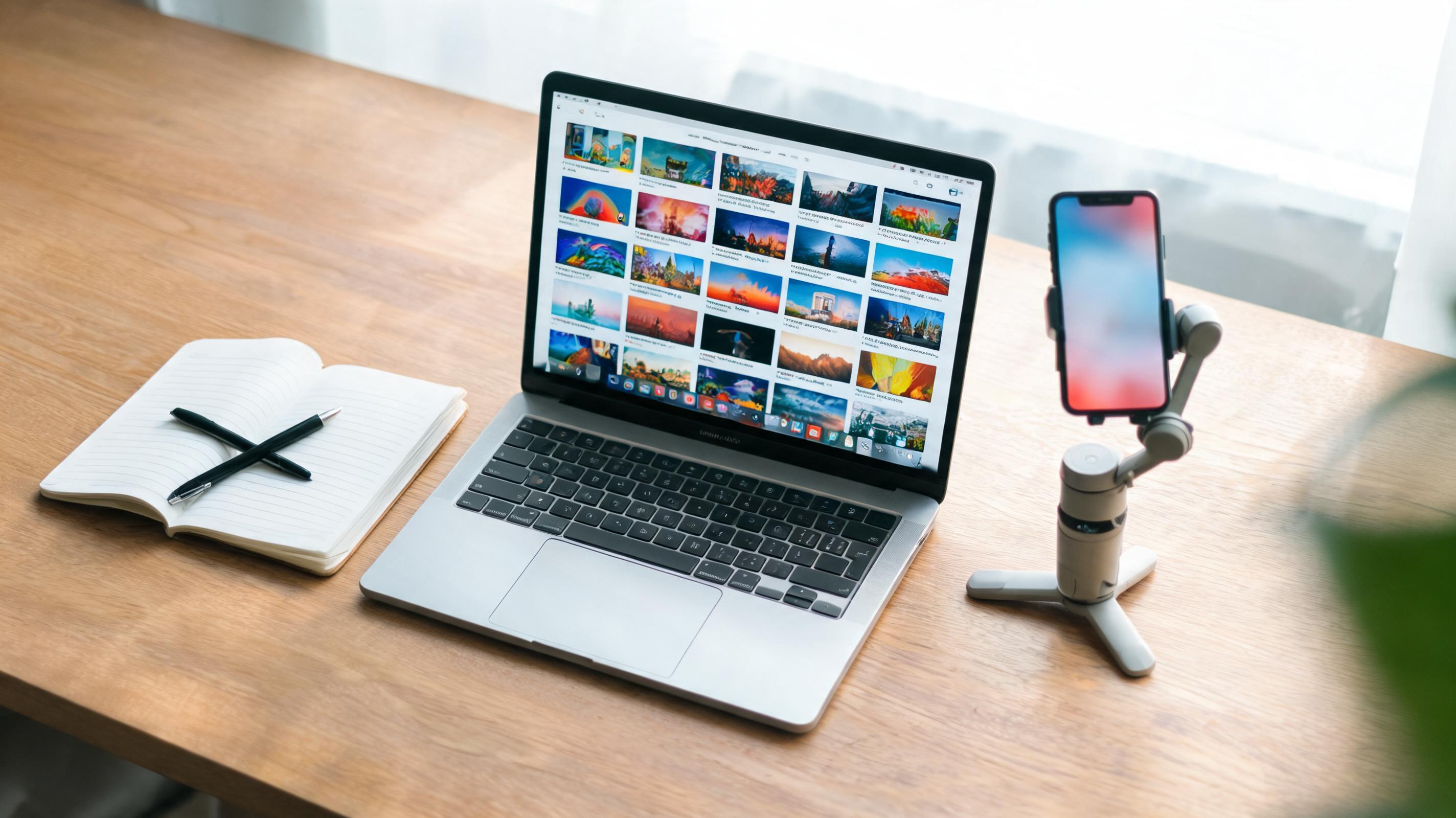
Creating a video with AI means typing a text prompt and letting a generative model such as Seedance 2.5, Kling 3.0, or Google Veo render it into a clip with motion and sound. In 2026, all-in-one AI studios like Imgentic bring many models together in one place, so you can make images, clips and short films without a production crew.
- Two input methods: text-to-video (a prompt only) and image-to-video (a prompt plus a reference image for consistency).
- Imgentic is an all-in-one AI studio with more than 70 models on one credit balance, including Seedance 2.5 and Seedream, for text-to-image, text-to-video, and AI filmmaking.
- Speed: Pixlr claims HD video in under 1 minute, updated 2026-08-13 (Source: Pixlr, 2026).
- Pricing: VIDIO prices its plans at THB 253.6/month and THB 1,120.3/month; heavy users should study the credit system carefully (Source: VIDIO, 2026).
- Market readiness: OpenAI launched Sora in Thailand in 2025, and Dreamina Seedance 2.0 reached CapCut users in 2026 (Source: TNGlobal, 2025; TechCrunch, 2026).
What Does "Create Video with AI" Mean?
Create video with AI means using a generative model to turn a text prompt or a reference image into a video clip automatically. You describe the scene in words, and models like Seedance 2.5, Kling 3.0, Google Veo, or the Adobe Firefly Video Model generate the motion, the visuals, and often the sound. No camera, footage, or editing team required.
Text-to-video AI is generative technology that creates moving video clips directly from a text prompt, without a camera or footage. The model has already learned how objects move, how light falls, and how a camera pans, so it can "shoot" scenes that never existed.
How Is Text-to-Video Different from Image-to-Video?
Text-to-video and image-to-video are the two main input methods for creating video with AI. The first starts from words alone, which gives you a lot of creative freedom but less control. The second starts from a still image, such as a Seedream image, a product photo, or a character sheet, and animates it. This approach keeps faces, colors, and framing far more stable.
- Text-to-video: best for quick concepts, b-roll footage, and testing ideas when you don't have a reference image yet.
- Image-to-video: best for brand and film work, because the first frame locks the look before motion is added.
- Hybrid workflow: create a still with a text-to-image model (such as Seedream), then animate it. This is the approach filmmakers on multi-model platforms use most.
What Does AI Generate? (Visuals, Motion, Sound)
AI video generators produce three layers at once: visuals (subject, background, lighting), motion (camera and subject movement), and, in newer models, sound as well. For example, Canva's AI Video Generator creates video from text with synced audio (Source: Canva, 2025), while Kling 3.0 pushes resolution up to 4K with character consistency.
What AI still struggles with: legible on-screen text, accurate hand gestures, and long continuous shots without visual drift. Knowing these limits before you start saves both frustration and credits.
How to Create a Video with AI, Step by Step
Creating a video with AI starts with a clear prompt that defines the subject, action, and style, followed by choosing a model, generating, and iterating. Most workflows have 4 steps: write the prompt, add a reference image (optional), generate, then export or refine. This workflow applies to both Luma AI and Imgentic. Some tools are very fast; Pixlr claims HD video in under 1 minute (Source: Pixlr, 2026).
- Write the prompt. Describe the subject, action, setting, camera movement, and visual style in one or two sentences.
- Add a reference image (optional). Upload a still, or generate one with a text-to-image model, to lock the look of a character or product.
- Pick a model and generate. Match the model to the shot, for example Seedance 2.5 for cinematic motion or Kling 3.0 when you need 4K, then render.
- Review, adjust, and export. Compare the result with what you intended, tweak the prompt or reference image, regenerate if needed, then export the final clip.
Write a Strong Prompt
A strong AI video prompt specifies five things in order: subject, action, setting, camera, and style. A sentence like "a woman in a red raincoat walks toward the camera through a neon-lit Bangkok alley at night, slow dolly-in, 35mm film look" gives the model far more to work with than "a woman walking in a city."
Tip: write one action per clip. Models handle "she turns and smiles" well, but "she turns, smiles, picks up a glass, and walks away" often falls apart mid-clip.
Add a Reference Image for Consistency
A reference image is the most effective way to keep a character looking the same across multiple clips. Instead of hoping the model draws the same face twice, you feed it the same still every time. On Imgentic, you create that still with Seedream and animate it with Seedance 2.5 inside the same text-to-video AI tool.
- Use a reference image with clearly lit faces and a plain background.
- Match the reference image's aspect ratio to the final video.
- Reuse the same file in every shot that features that character.
Generate and Iterate
Iterating on AI video means changing one variable at a time (the prompt wording, the reference image, or the model) and regenerating until the clip matches your intent. In the cases we see most often, people who change three things at once can't tell which change fixed the problem, and they burn twice the credits before getting a usable result.
In short: prompt → reference → generate → refine. Test ideas at the lowest settings first, then spend credits on the real high-resolution render.
The Best AI Video Generators of 2026, Compared
The leading AI video generators of 2026 include Imgentic, Canva, OpenArt, Kling, Adobe Firefly, and Luma AI, and they differ in supported models, audio, resolution, and price. Imgentic stands out as an all-in-one studio with more than 70 models, including Seedance 2.5 and Seedream, on one credit balance, while the others tend to run a single ecosystem or host a fixed set of models.
Most competitor pages promote their own ecosystem and never explain the alternative: a multi-model platform that switches between Seedance 2.5, Seedream, and others shot by shot. That flexibility matters because no single model wins every scene. Some excel at faces, some at fast motion, and some at 4K detail.
Comparison Table: Platform, Models, Audio, Resolution, Free Tier
| Platform | Video models | Audio / resolution | Free tier |
|---|---|---|---|
| Imgentic | Seedance 2.5, Seedream (images); 70+ models on one credit balance | — | — |
| Canva | Canva's own generator | Synced audio (Source: Canva, 2025) | Free with limits |
| OpenArt | Gemini Omni, Veo 3.1, Kling 3.0, Seedance 2.5 | Depends on the model selected | — |
| Kling | Kling 3.0 | 4K, character consistency | — |
| Adobe Firefly | Firefly Video Model + Google Veo + Runway (Source: Adobe, 2026) | Depends on the model selected | Free text-to-video option available |
| Luma AI | Luma's own models | — | — |
The same models show up on multiple platforms, so the real question isn't "which model?" but "where can I use the right model for each shot?" The table below maps each model to where it's hosted.
| Model | Hosted on | Known strengths |
|---|---|---|
| Seedance 2.5 | Imgentic, OpenArt | Text- and image-to-video with a cinematic look |
| Kling 3.0 | Kling, OpenArt | 4K output, character consistency |
| Google Veo (3.1) | OpenArt, Adobe Firefly | Google's flagship video model |
| Adobe Firefly Video Model | Adobe Firefly | Native Adobe workflow |
Which Tool Suits Which Kind of Creator?
The right AI video generator depends on whether you make standalone social clips or multi-shot films. Canva suits marketers who already design in Canva and want quick clips with synced audio. Kling suits people chasing 4K detail. OpenArt and Imgentic suit people who want to compare models, with Imgentic putting image, video and audio models on one credit balance.
- Social media marketers: Canva or CapCut. Fast, template-driven, one ecosystem.
- Indie filmmakers: Imgentic. Seedream stills plus Seedance 2.5 motion in one AI image and video platform.
- Model tinkerers and power users: OpenArt. The widest model roster per credit.
- Adobe-based editors: Adobe Firefly. The Firefly Video Model, Veo, and Runway inside familiar tools.
The trade-off to weigh: multi-model platforms take longer to learn. If you only need one 8-second clip a week, a single-ecosystem tool may be simpler and cheaper.
How Much Does It Cost to Create AI Video? (Pricing and Credits)
AI video pricing is based on credits or monthly subscriptions and varies widely. For example, VIDIO prices its plans at THB 253.6/month and THB 1,120.3/month (Source: VIDIO, 2026). Many tools offer a limited free tier. Cost per clip depends on length, resolution, and how many times you regenerate before you get a usable result.
| Platform | Plan | Price | Notes |
|---|---|---|---|
| VIDIO | Starter plan | THB 253.6/month | Source: VIDIO, 2026 |
| VIDIO | Higher plan | THB 1,120.3/month | Source: VIDIO, 2026 |
| Imgentic | — | — | Credit-based; check the cost per model |
| Adobe Firefly | Free | 0 | Free text-to-video with limits |
| Canva / Pixlr | Free | 0 | Limits on length, resolution, or credits |
Free Tiers and Their Limits
Free AI video generators almost always limit one of three things: clip length, resolution, or monthly credits. Adobe Firefly offers a free text-to-video option, while Canva and Pixlr offer free generations before you upgrade. Free tiers are good for learning prompt structure but are rarely enough for a full multi-shot project.
Watch out: some free tiers add watermarks or prohibit commercial use. Check the license before you publish client work made on a free plan.
Understanding Credits and Cost per Video
Video credits are the unit most AI platforms charge per render. Cost per clip rises with length, resolution, and the model you choose. A 4K clip usually consumes far more credits than a 720p test of the same prompt, and every regeneration is charged again. Check Imgentic's current credit cost for each model before you set a budget.
- Estimate 3–5 attempts per usable clip when budgeting for a new prompt or scene.
- Multiply by the number of shots in the project to find the monthly credits you'll really need.
- Compare plans on credits per dollar, not the sticker price. See how to calculate it in the AI video pricing guide.
Can You Make a Full AI Film, Not Just Short Clips?
Making a full AI film is possible, but you have to stitch many clips together while keeping characters, settings, and pacing consistent, something single-clip tools rarely do well. In an all-in-one studio like Imgentic you can make reference frames with an image model and animate them with Seedance 2.5 or another video model in the same account, which makes it easier to keep the visuals connected across a longer story.
An all-in-one AI studio is a platform that puts many image, video and audio models in one account, usually on one credit balance. You still generate shot 1 and then shot 2 yourself, but the reference images, the video models and the audio tools are all in one place, so you do not export files between separate apps.
Scene and Character Continuity
Character consistency is the biggest technical wall between an AI clip and an AI film. That's exactly why Kling 3.0 makes character consistency a headline feature. In practice, you lock one reference image per character and one per location, then reuse them in every shot. That's the multi-shot continuity AI films depend on.
- Create a character sheet (front, profile, close-up) with a text-to-image model before generating any video.
- Describe wardrobe and lighting identically in every prompt.
- Generate every shot of a scene in one session, with the same model.
Sequencing Shots into a Story
AI film sequencing means breaking a script into a shot list, generating each shot as a short clip, and assembling the clips in order with a consistent rhythm. A 60-second short film usually needs 8–12 clips of 5–8 seconds each. Read the how to create an AI movie guide for a full shot-list template.
- Write a one-paragraph logline, then a scene-by-scene beat sheet.
- Turn each beat into a single-shot prompt with subject, action, setting, camera, and style.
- Generate the wide shots first, then the close-ups using the same reference images.
- Assemble the clips in an editor, add music and sound, then cut to the rhythm.
Use Cases: Ads and Short Films
AI film workflows handle two kinds of commercial work especially well: product ads and narrative short films. Ads benefit because the product photo becomes a locked reference, so image-to-video keeps the packaging accurate. Short films benefit because reference frames and video generation sit in the same place, so each new shot can reuse the same character images.
The honest drawback: lip-synced dialogue and long continuous shots are still weak in every model in 2026. Plan your edits to work around them.
Common Mistakes When Creating AI Video
The most common AI video mistakes are vague prompts, ignoring character drift between shots, expecting a perfect result on the first try, and burning credits on high-resolution renders before the concept is settled. Test at low settings, lock reference images for consistency, and refine prompts before the final export to avoid wasted spend.
Prompt Structure Mistakes
Prompt structure mistakes cause the most off-target first results. The fix is specificity, not length. The mistakes we see most often:
- Vague subject: "a person" instead of "a woman in her early 30s with short black hair, wearing a gray blazer."
- Multiple actions: cramming three movements into a single 5-second clip.
- No camera direction: the model picks the movement for you, so specify "static," "slow pan," or "dolly-in."
- Conflicting style words: "photorealistic anime" confuses the model.
- No lighting: lighting sets the mood, so always specify it ("golden hour," "soft studio").
Avoiding Character and Style Drift
Character drift is the number-one continuity problem across shots: the same character's face, clothes, or proportions change from clip to clip. Style drift is its close cousin, where one shot looks cinematic and the next looks like a cartoon. Both come from generating without a locked reference image.
- Attach the same reference image to every shot that features that character.
- Stick with one model within a scene; switching models mid-scene changes the "look."
- Copy the exact style phrase into every prompt.
- Generate a test frame first, then compare it side by side with the previous shot.
Save Credits by Iterating Smartly
Wasted credits usually come from regenerating at high resolution before the idea is settled. Test at the lowest resolution and shortest length the platform allows, fix the prompt there, then render once at full quality.
- Draft at low settings, and finish at high settings only once.
- Change one variable per iteration so you learn what actually fixes a shot.
- Keep prompts that work in a reusable library for your next project.
- Log the credits spent per finished clip, so your next budget comes from data, not guesswork.
AI Video Adoption in 2025–2026: Where the Market Stands
AI video has gone mainstream fast. OpenAI launched the Sora video app in Thailand in 2025, one of the first Asian markets to get it (Source: TNGlobal, 2025), and ByteDance brought Dreamina Seedance 2.0 to CapCut users in 2026 (Source: TechCrunch, 2026). This momentum means more models, faster renders, and more affordable tools for everyday creators.
Sora, Seedance, and the Move into the Mainstream
The 2025–2026 milestones show AI video moving from research demos into consumer apps. OpenAI Sora reached users in Thailand in 2025, Dreamina Seedance 2.0 arrived in CapCut in 2026, and CapCut's Thai-language page showed a Seed 2.5 feature, updated 2026-08-26 (Source: CapCut, 2026). Seedance's move from a lab model into a mass-market editor within a single year explains why Seedance 2.5 explained has become a popular search among creators.
- 2025: OpenAI launches the Sora app in Thailand (Source: TNGlobal, 2025).
- 2026: Dreamina Seedance 2.0 reaches CapCut users (Source: TechCrunch, 2026).
- 2026-08-13: Pixlr updates its claim of HD video in under 1 minute (Source: Pixlr, 2026).
- 2026-08-26: CapCut's Thai page updates its Seed 2.5 feature (Source: CapCut, 2026).
What Faster Rendering Means for Creators
Faster rendering turns AI video from a "submit and wait" tool into an interactive one. When clips come back in under a minute, you can iterate ten times in the time a single render used to take, which directly raises quality per credit. It also lowers the barrier for teams that need to ship social content the same day.
In short: more models on more platforms, plus faster renders, mean the metric that matters in 2026 is model selection and credit efficiency, not access.
Why Choose an All-in-One AI Studio Like Imgentic?
Imgentic is an all-in-one AI studio that brings more than 70 image, video and audio models, including Seedance 2.5 and Seedream, onto one credit balance for text-to-image, text-to-video, and AI filmmaking. Instead of switching between tools, creators make images and video clips in one account, and the credit price is shown before each generation.
One Workspace for Images and Video
Imgentic combines text-to-image with text-to-video, so the stills you design become the references you animate, with no exporting between apps. Generate a character or product with Seedream, then hand it to Seedance 2.5 for motion. That's exactly the hybrid workflow that solves character drift at the source. Try creating your first clip on Imgentic today.
Multi-Model Flexibility
Multi-model flexibility means Imgentic lets you choose a model for each shot instead of locking you into one ecosystem. Seedance 2.5 is a high-end AI video model used by several platforms, including Imgentic and OpenArt, to generate high-quality clips from text or image inputs. Having it next to Seedream in one place cuts down the tab-switching most creators deal with every day.
- Pro: one login, one credit pool, and one reference library across all models.
- Pro: FILM and Drama build multi-scene work scene by scene with locked character faces.
- Con: more options mean a learning curve; expect a few sessions before you feel fluent.
- Con: check current pricing and credit rules before committing to a large project.
Built for Creators and Filmmakers
Imgentic targets creators and filmmakers who need sequences, not just single clips, so the workflow emphasizes shot lists, continuity, and reusable reference images. If your goal is a finished ad or short film rather than a one-off social post, having image and video models in one place saves you moving files between separate tools.
Frequently Asked Questions
Below are the most common questions about creating video with AI, covering free tools, video length, quality, pricing, and how to make a full film from text.
Is there a free AI video generator?
Yes, several platforms offer free tiers. Adobe Firefly offers a free text-to-video option, and tools like Canva and Pixlr offer free generations limited by length, resolution, or credits before you upgrade. Free plans are good for learning prompts, but multi-shot projects usually require a paid credit plan.
Can I generate video from text alone?
Yes. Text-to-video is the core feature of tools like Imgentic, Canva, and Luma AI. You type a prompt describing the scene, action, and style, and the AI renders the clip. Adding a reference image improves consistency, especially when the same character or product appears across several shots.